
Adjudicator
This page is only available to users that have been allocated the Adjudicator Role, and allows such users to prepare newly acquired violations (and associated evidence) for export to the predesignated Back Office system.
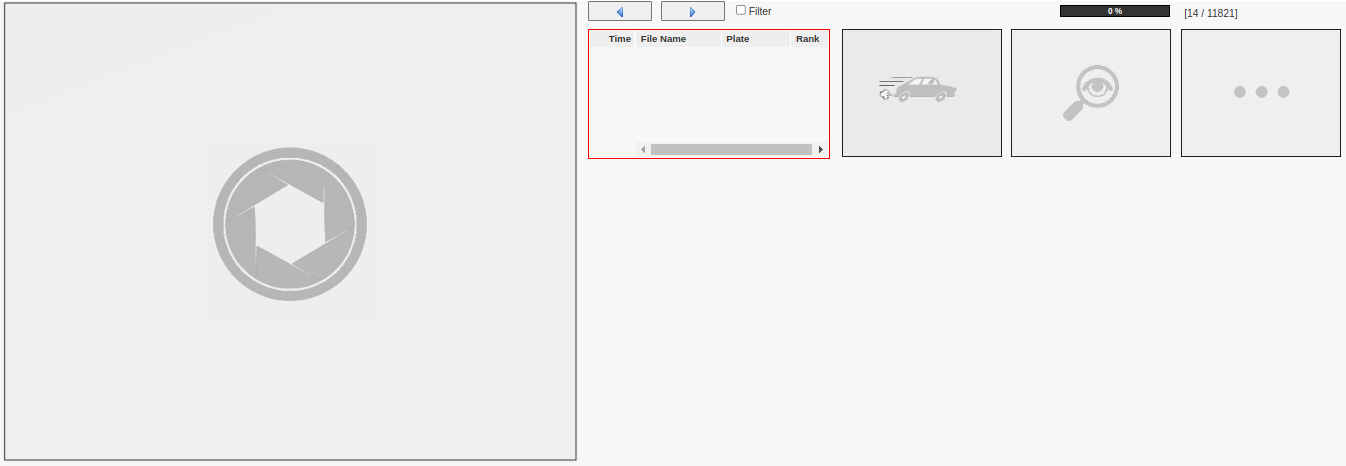
Elements of this page include:
The Main Image, which is the large block on the left denoted by the camera shutter image. This displays the currently selected image (item of evidence) - chosen by selecting from either the Evidence List or Speed and Range Chart described below.
The Evidence List, which is currently empty and highlighted with a red boundary - for reasons that will be explained below.
The Navigation buttons Back (
 ) and Next (
  ), allowing the user to select next and previous violations available for adjudication.
 The Filter check box
 appears to the right of the Navigation buttons and is used to define the selection criteria for the Next violation to be displayed.
 The Filtering Options in the line below the Filter check box.
The Progress Bar appears to the right of the 'Filter' check box and is an indication of the number of violations that are still to be adjudicated. This is only displayed when filtering is not selected.
The three image placeholders to the right of the page, indicated by the 'Speeding Car', 'Magnifying Glass', and 'Three Dots' are placeholders for the 'Maximum Speed image', 'Plate Identification image' and 'Other' images respectively.
Progress Bar
The progress bar is intended to offer only a rough sense of how far the adjudication process has progressed overall. So, for instance the numbers [97 / 934] indicate that 97 of offences have been processed out of a total of 934 recorded in the past few months. To be clear, the second figure does not represent the total number of offences on the system - as over time that would progressively skew the completion percentage towards the 100% figure, as more and more total offences were recorded.
Filter
If the Filter check box is selected, then the following additional control options will be displayed:
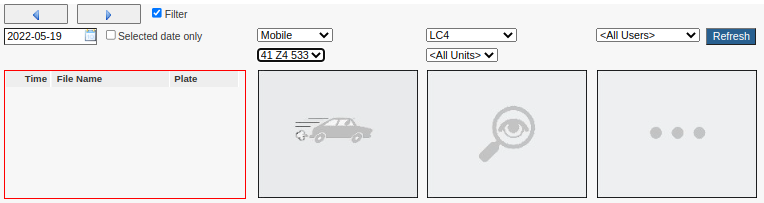
And if Shifts are present that satisfy the selected options, then those shifts will also be listed:
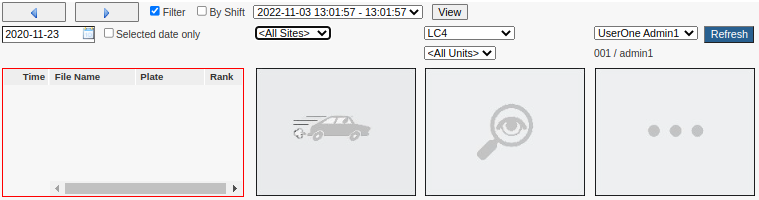
Filtering Options

Date: The selected date represents the earliest recorded violation date that may be selected for adjudication.
Selected date only check box: This has the effect of limiting displayed violations to only those that were recorded on the selected date.
Sites dropdown list: Restricts the selection to a specific site.
Satellites dropdown list: Restricts the selection to a specific type of recording source/device (LaserCam4, DCam, etc).
User list: Restrict the selection to violations that were recorded by the selected camera operator - denoted by the User ID account property. Note that this filter is only useful if all camera operators also have VMS Accounts - even if those accounts have no allocated roles.
Filtering by Shift
For the cases indicated above, the set of listed shifts has no effect on the filtering itself. On the contrary, the shifts included in the list are determined by the filter.
Note however that by selecting the By Shift check box, the display will change to something like the following ...
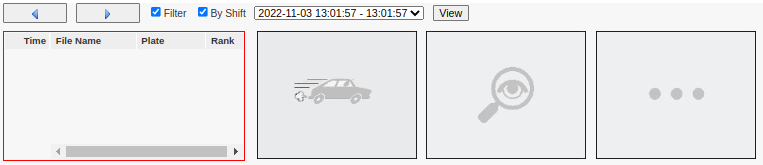
... and in this case the available violations are now filtered in accordance with the selected shift. Nevertheless, it is important to understand that the contents of the 'shift list' is still determined by the selected filter prior to the selection of the 'By Shift' check box.
Shift View
Pressing the View Button will result in the full details of the selected shift being displayed. See here for an example.
Placeholder Images
Speed Image: The image representing the vehicle when travelling at it's maximum speed.
Identification Image: The image that has the clearest view of the vehicle registration plate and/or the driver of the vehicle.
Other Image: This usually optional, and should contain any additional detail that may be relevant to a successful prosecution - including perhaps an ANPR image from another recording device/camera.
See Image Selection for details on how to select a suitable image.
Violation Selection
Clicking the Next button will cause the next available violation to be selected from the pool of unadjudicated violations.
For example ...
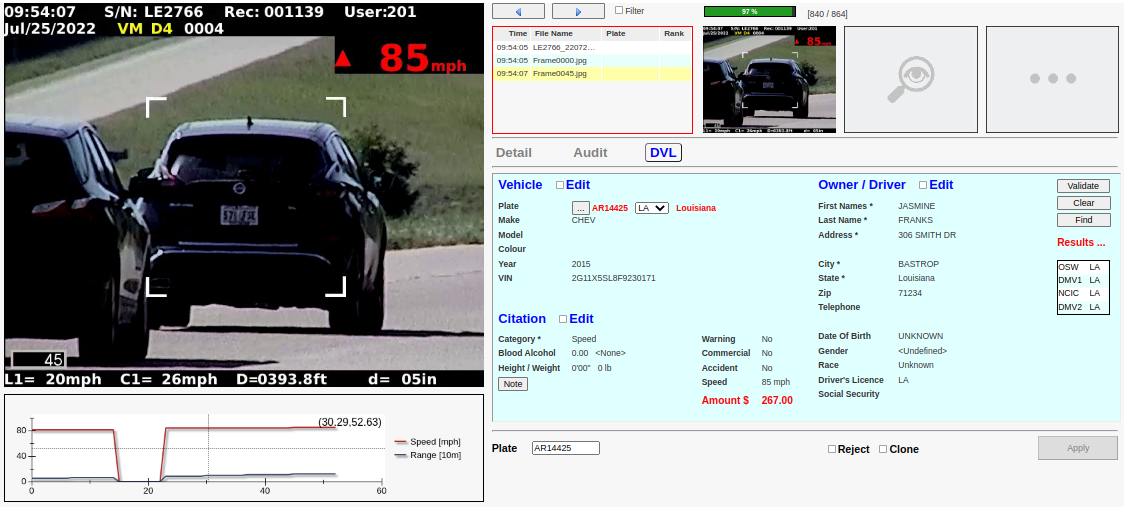
You will notice that (in this case) the system has automatically selected the Speed Image (see Auto Selection), and several additional page elements are now visible. Immediately below the Main Image is a Speed and Range Chart depicting the speed and distance to the vehicle over the course of the video recording, while the bottom right hand portion of the screen displays the Violation Details Menu, and Adjudicator Action Controls.
Speed and Range Chart
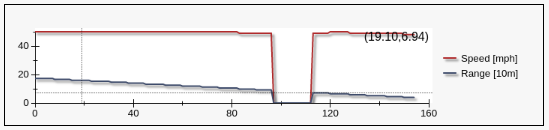
This graphic only appears if the violation has an associated video, and moreover, if that video was successfully scanned by the OCR engine. When a video is imported into the VMS system it is scanned (one frame at a time) for all relevant textual information, resulting in the creation of a video Frame Trace file - explained in more detail in the observer section.
The horizontal axis represents the video frame number, while the vertical axis represents two distinct metrics (speed and distance) which have been scaled in order to sensibly share the same numeric range.
The vehicle speed - expressed in mph or kph (depending on the system configuration).
The distance or Range from the camera to the vehicle - expressed in units of 10m. This rather odd choice of units is motivated by a desire to represent both the speed and distance against the same scale on the vertical axis.
The purpose of the chart is twofold:
- It immediately shows the likely quality of the overall recording, and those times which are most relevant for speed enforcement purposes.
It serves as a navigation tool. Clicking at any point on one of the curves will cause the VMS to extract the video frame corresponding to that point and to display it as the Main Image.
Note that clicking on the graphic will also cause its' border to change colour from black to red, while the red border of the Evidence List will change to black. The red border indicates the current source of selected Main Images. See Image Selection below.
Evidence List
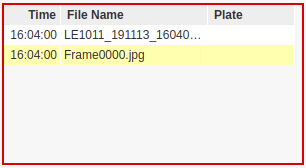
The Evidence List only includes images that are directly associated with this violation. In particular (at this point) the list only contains the original video (LE1011_191113...) and a single image (Frame0000.jpg) that was automatically extracted from the video because it represents the first Maximum vehicle speed.
The following in another more interesting example.
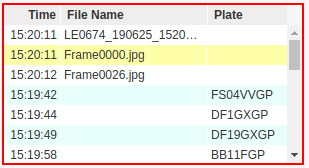
In this case the list has been populated with ...
The violation video file - usually the first entry in the list. Note that some violations (e.g. DCam violations) will not have a video file.
Frames 0 and 26 of the video. File names that start with the word Frame followed by a numeric value represent previously extracted video frames, where the numeric value represents the associated video frame number.
ANPR images denoted by the fact that the Plate column contains a vehicle registration number. These ANPR images were captured by one or more independent ANPR cameras at a time and place 'close' to that of the current violation. Note that many images will have no bearing on the violation in question, but the hope is that at least one of those ANPR images will offer an alternative view of the vehicle in question. For instance, this might be a rear view of a speeding motorcycle which doesn't carry front plates and that would thus be unidentifiable if the violation video was only captured from the front as the motorcycle approached the video camera.
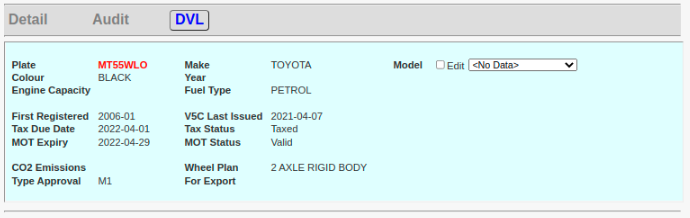
Details Panel
The contents of this panel are explained in the Violation Details Menu.
Action Controls
The action controls allow the user to 'Adjudicate' on the merits of the offence.

In this case the user has decided to record the vehicle registration plate number, but this is not generally required unless the violation is to be Cloned.
To complete the adjudication process it will usually be necessary to select at least two evidence images ('Speed', 'Identification', or 'Other'), but that depends on how your VMS was configured. The Apply Button will only be enabled once the minimum number of images has been selected.
Alternatively the user may decide to reject the violation by clicking the Reject Checkbox - in which case the user will be required to select a suitable reason from the displayed dropdown list. For example ...

The Clone option is discussed below.
Adjudication Steps
The sole purpose of the adjudicator is to select still images that are suitable representatives of the violation in question.
Image Selection
First choose an image for the Main Image by either ...
Selecting it from the Evidence List, or
Clicking a suitable point in the Speed and Range Chart.
If you change your mind then simply re-select as above, or manipulate the Main Image directly as follows ...
A single-click of the Main Image will cause the next available image to be selected from either the Evidence List or the next frame of the video - depending on which of the Evidence List or Video Graphic is currently highlighted with a red border.
If the list is highlighted, then the next image in the list will be selected.
If the graphic is highlighted, then the next video frame will be selected.
Double-clicking the Main Image will have the effect of reversing the direction. Either the previously listed image or video frame will be selected.
Having made your choice, transfer a copy of the selected main image to either one of the smaller 'placeholder' images above by simply clicking the appropriate placeholder. To remove an image from a placeholder, just double-click the placeholder.
Note that the selected images must be distinct. The system will not allow you to select the same image for both placeholders.
Apply the ruling
Click the Apply button to save the ruling. This will also queue it for confirmation by a 'Supervisor' and automatically display the next available violation for adjudication. Continue in this manner until all available violations have been adjudicated.
If you have selected a new video frame that was not already listed in the Evidence List, then that image will be saved to the LFR and will henceforth be listed in the Evidence List when this violation is viewed again by the Supervisor, Observer, or indeed again by the Adjudicator in the event that the ruling was overruled by the Supervisor.
Auto Confirmation
Note that the VMS may be configured to treat Adjudicator rulings as final - in which case the Adjudicator is in effect also a 'Supervisor' and no additional Supervisor confirmation step is necessary. A further VMS configuration option allows for the possibility to auto-confirm only a fixed percentage (say 20%) of Adjudicator rulings. See Auto Confirmation for more details.
Rejecting a violation
Sometimes the violation may be unusable. There are several possible reasons ...
The vehicle registration number is not visible in any of the available evidence images.
The image quality is very poor.
A bogus or test violation has been mistakenly captured.
In such a case the adjudicator may Reject the entire violation by clicking the Reject check box and selecting a suitable reason from the available options listed in the drop-down list, and then pressing the Apply button.
Clone a violation
Sometimes a single violation (video) will actually contain multiple offences from multiple vehicles. In that case you will need to ...
Complete the adjudication (as usual) for the first vehicle, but without immediately pressing the 'Apply Button'.
Enter the registration number for that vehicle into the Plate edit box.
Select the Clone checkbox.
- Click the 'Apply Button'

As a result, the indicated vehicle (by plate) will be deemed to have been adjudicated in the usual way, but now a new cloned (copy) of the original violation will be created with its' own unique VMS ID. The Adjudicator will now be required to adjudicate the next vehicle in the same way. Note that it is possible to repeat the process multiple times on the same video clip provided that each applied violation is assigned a new/different plate number.
Note: For the last vehicle do not select the 'clone' check box.
Navigation - Skipping Forward / Backward
If you are not happy to immediately process a particular violation, then Skip to the next one (if available) by just clicking the Next button again until a suitable one is found. Likewise, the Back button may be clicked to go backwards again.
Filtering
Occasionally it is useful to only process violations that were acquired on or after a specific date and specific Site, Satellite and/or User (camera operator). If your Filter check box is disabled, then the Administrator has locked your filter.
In that case ...
Click the Filter check box. This will cause a date picker widget to appear allowing you to select the date on or after which the violation must have been recorded. By default, this filter now applies to <All Sites> and <All Satellites>.
- You may then refine the filter by ...
Selecting a type of site other than <All Sites>. This will cause a Site drop down list to appear - listing all sites of that type.
Selecting a type of satellite and then even the specific satellite unit.

For example ...

In this case, the selected violations are those recorded on and only on the 4th of October 2011 at the Roadway (type) site 01234, sourced from the LC4 satellite unit LE2515, and recorded by 'Guest Accounts'.
Each time a new filter is selected the Next button must be clicked in order to see the next violation that satisfies that filter.
Filtering Persistence
NOTE: The filter settings are persistent. This means that the adjudication filter is remembered individually for each user, and is automatically reapplied when a user signs in again at some later date.
Site Colours
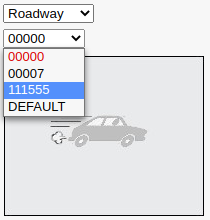
Note that the Site text codes colours (Red, Blue, and Black) denote the 'Alert Status' of that site.
Red text denotes a site that is invalid in some way (e.g. A missing 'Speed Limit' or a temporary X. prefixed code).
Blue to denote an unassigned Site Type.
Black for a correctly defined site.
Filter Refresh
Occasionally it may be necessary to refresh the contents of the filter dropdown lists by pressing the Refresh Button. This is usually only necessary when, for example, new sites have been defined recently.
Overruled Rulings
Occasionally a Supervisor may overrule an Adjudicator's ruling, in which case the violation may be displayed with a message such as the following ...
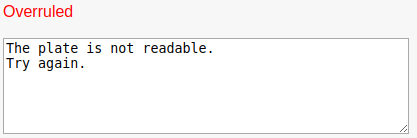
Note that the filter has no effect on violation rulings that have been overruled by the supervisor. This means that the filter is ignored until the adjudicator has first handled all such overruled rulings.
In this case simply re-select a more appropriate set of images and reapply the ruling.
Auto Selection
The VMS can be configured to automatically select an image that is either ...
The first frame of the video.
The frame of the video that corresponds to the maximum speed.
If neither of the above has been configured, the adjudicator will be required to make all selections.
Multiple Adjudicators
In some instances there may be multiple adjudicators working concurrently. In that case the VMS system guarantees that no two adjudicators will be served the same violation at the same time. This is achieved by effectively assigning ownership of a served violation to a specific adjudicator until he/she applies a ruling, skips to another violation, or signs out of the system.