
Account Management
This page is only available to users that have been allocated the Administrator Role, and allows for the creation and general management of VMS User Accounts.
Account Attributes
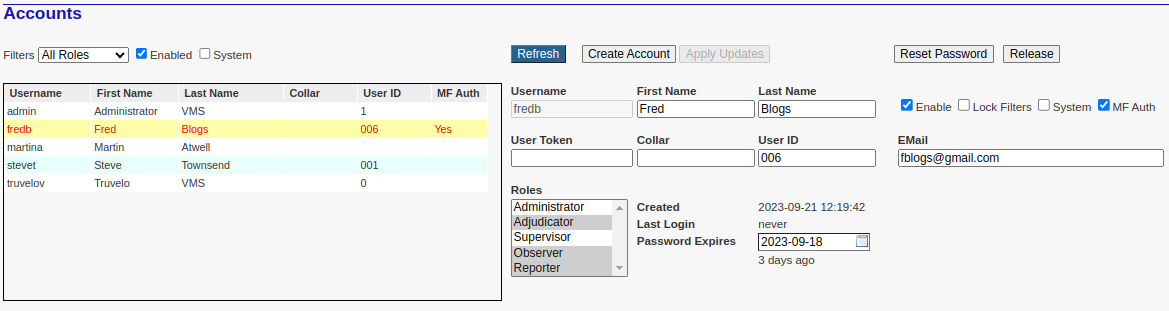
As indicated by the screen above, accounts have the following attributes:
Username
This is a unique login name allocated by the system. The username is constructed by combining (in lower case) the first name with the first letter of the last name. If this sequence of characters is still not unique then additional digits will be automatically appended in order to ensure that the combined string of characters is unique. You may notice that in this example the username is admin yet Met Admin are the first and second names respectively. This was achieved by first creating an account with the names Admin Name (which resulted in the username 'admin'), saving, and then editing the 'First' and 'Last' names appropriately. Of course, this is usually unnecessary. The username meta would also have been perfectly usable albeit less informative.
First Name
The account holder's first name.
Last Name
The account holder's surname.
User Token
This is an optional field of alphanumeric characters representing the address of a unique Bluetooth device. This may be a dedicated security token specifically allocated to the user, or more commonly, just the users' own mobile phone. Its purpose is to provide additional security in controlling access to various VMS-related systems such as the VMS in-car PhiNyx system.
Collar
This is an optional field that should contain the individuals standares 'institutional number'. For instance this is usually a police officer's 'Collar Number', also known as a 'Badge Number'. This number may be included during the 'export' process to third pary systems like Cubic.
User ID
This is another optional field that may contain any externally assigned user code or number. Examples include an company employee number, national ID number, passport number, etc. This ID number will usually contain the so called 'Operator ID' catered for by various speed enforcement devices/equipment.
The email address that should be used for both Multi Factor Authentication and / or Forgotten passwords handling.
Roles
A user may be allocated one or more of these Account Roles. In the example above the user has been allocated all roles - as is indicated by the fact that all list box items are highlighted.
Created
The date and time at which the user account was first created on the VMS system.
Last Login
The date and time that this user last logged into the VMS system.
Enable
This parameter controls user access. It is used to remove system access either temporarily (i.e. annual leave) or permanently when the employee leaves the company or institution. Note that accounts cannot be deleted because to do so would corrupt the internal audit trail.
Lock Filters
See details below
System
Do not check this option. It's purpose is strictly for technical use only.
MF Auth
This option enables Multi Factor Authentication for this user account. If this is checked then you must also provide a valid EMail address. Accounts for which this option has been selected are forced to provide a single-use PIN in addition to their password when attempting to log into their account. A new random PIN is automatically sent to them via the specified email address every time they log into the system.
Password Expiry
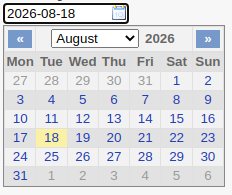
The expiry date of a password is automatically set based on the value of the PasswordExpires system parameter representing the number of seconds after a password update for which the password will remain valid. Nevertheless, this date may be manually changed by the Administrator using the drop down calendar widget.
Locking Filters
This checkbox allows an administrator to control which specific violation or image types may be viewed by the user. This is achieved as follows.
An Administrator logs into the VMS system.
Navigates to the Adjudicator, Supervisor, or Observer pages
Selects the desired filter settings.
Navigates back to the Account Administration page.
Selects the applicable username from the account list.
Marks the Lock Filters checkbox as selected.
This will effectively assign and lock the selected filter(s) to that user.
System
This checkbox denotes whether or not this account represents a person or a system software component. For instance, the VMS In-Car PhiNyx system is a software component which must also be allocated system access.
Account Creation
It is important to note that in order to ensure continuity of the VMS audit trail, accounts cannot be deleted once created, and can only be disabled. If the VMS were to allow account deletions, then the audit trail would reference users whose details are no longer available. The audit trail exists in order to ensure user accountability.
To create an account...
Click the Create Account button.
Enter the new account holder's names into the First Name and Last Name fields, and then click the Apply Updates button. If that button remains grayed out then you have not yet correctly entered a first and last name. In the example below the optional User Token and User ID have been left blank.
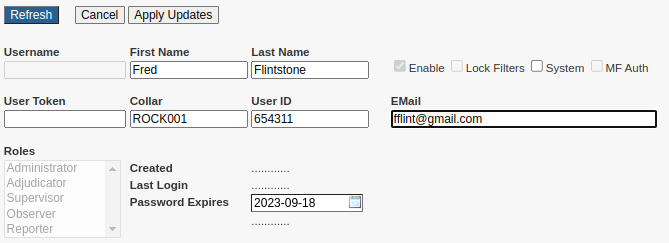
Now find the user in the table of accounts on the left of the screen and Edit the account details. If you can't find the new user in the account list, you may need to adjust the list filter located just above the account list.
To Cancel the creation of the new account click the Cancel button that will have replaced the Create Account button.
Note that the account Username is not editable and is automatically allocated by the VMS system concatenating the First name and first letter of the Last Name. If that username already exists then it will be modified by appending a number to the end of the username - trying consecutive numbers 1, 2, 3 ... until the username is found to be unique.
Note also that the user's expiry date is automatically set by the system based on the adjustable PasswordExpity system parameter. To see the list of all VMS system parameters simply run the System - Locale Details report from the 'Reporter' page.
Account Editing
Having selected (clicked on) an account in the account list you are now able to edit the following account details ...
First Name.
Last Name.
Enabled Status.
System Status.
User Token. This is usually the address of a Bluetooth device allocated to this user.
User ID. This is usually the ID used by the camera operator to identify themselves.
Allocated Roles.
Note that the username may not be edited.
Having completed the account setup, make sure to click the Apply Updates button to save your changes.
Editing Roles
Account holders may be allocated one or more VMS roles.
To allocate a single role simply click on the appropriate role.
To select multiple roles, simultaneously hold down Ctrl button and click the appropriate roles.
See here for role details.
Passwords
When an account is initially created, the system will automatically allocate the (temporary) password "password". Note however that this password will automatically expire within a very interval - usually an hour - giving the new account holder enough time to log in to the VMS and to define a new (private) password. Note that the system will always force new account holders to change their password when they first sign in or when that password has been Reset.
To Reset a password the administrator should select the relevant account from the account list and then click the Reset Password button that appears.
Once a password has expired, the user is effectively locked out of the system and may only sign in again once the password has been reset by an Administrator.
Expiry Intervals
The system defines two distinct password expiry intervals.
The Initial expiry interval applies to brand new accounts and to existing accounts whose passwords have been reset. This is usually only about 1 hour - but is configurable during VMS setup.
The Long-term expiry intervals applies to all account holders and is usually about 31 days from the last change of password - but is configurable during VMS setup.
Release Button
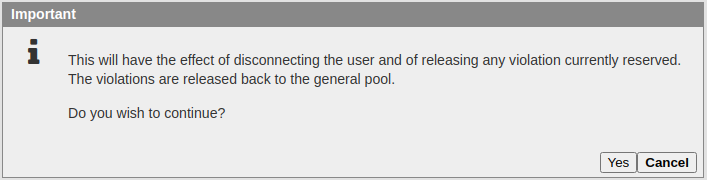
The administrator my use this button to forcibly disconnect a user (log them out) and to release all their 'locked' offences. Offences are locked by an adjudication/supervisor when that offence is being adjudicated/checked.
The following prompt is typically shown when this button is pressed ...
List Filter
Note that there are three filter controls located above the account list on the left hand side of the screen.

The Roles combo box limits the listed accounts to those that have been allocated the role represented by the combo box selection. In this example Administrators have been selected.
The Enabled check box limits the displayed accounts to those that have been Enabled or Disabled as the case may be.
The System check box limits the displayed accounts that represent systems components.
Note that the filter selections are applied in an 'and' rather than an 'or' configuration. In other words, the displayed accounts will satisfy all three filter settings simultaneously.
Colourization
Note that Red list box items denote 'active' accounts whose passwords have expired.