
Observer
This page is only available to users that have been allocated the Observer Role. This is a strictly view only function with no capacity to edit or delete violations and related evidence.
There are broadly two distinct display formats, one for Violations, and the other for ANPR events.
Violation Display
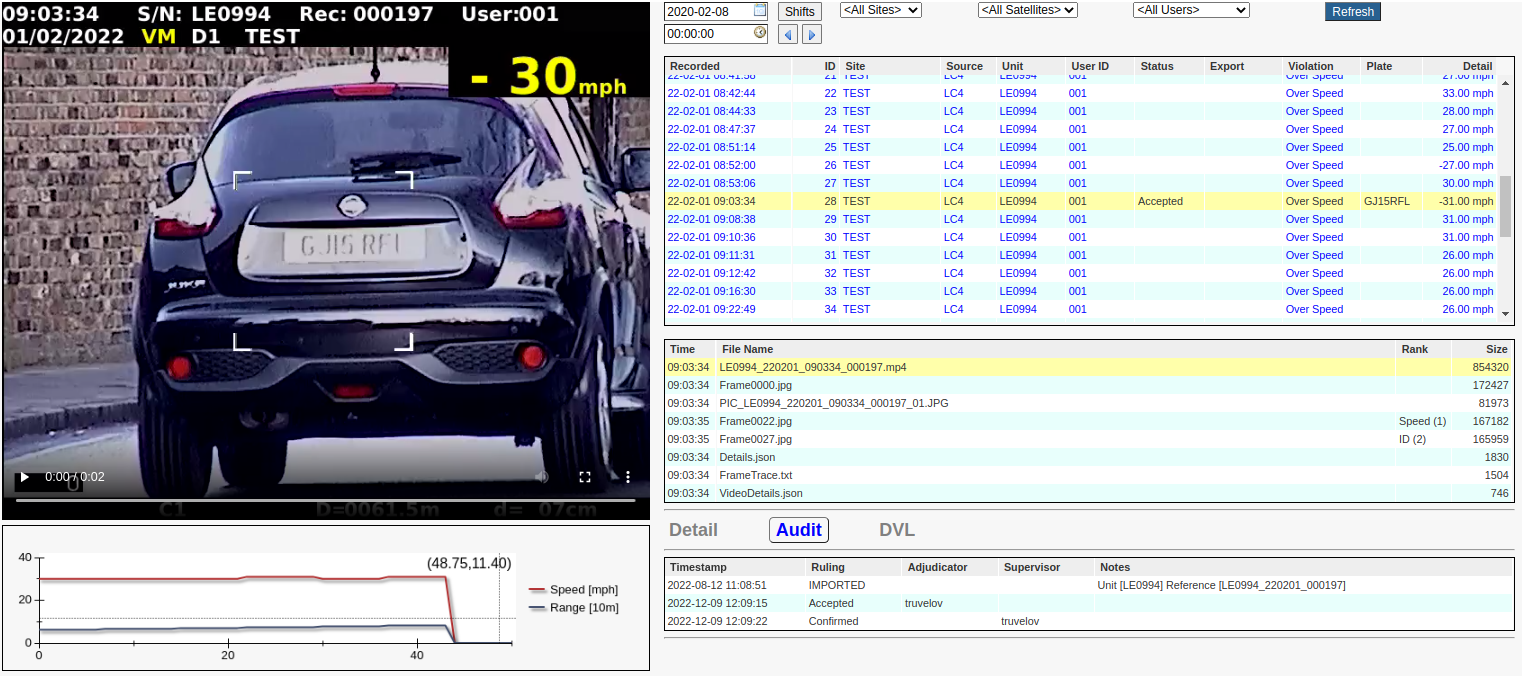
Main Image
Depending on what item has been selected in the Evidence List, this may be any one of the following ...
A video clip as shown above.
A static image or extracted video frame.
A text box containing (but not limited to) Violation Details, Video Details, and Frame Trace.
Static Image Navigation
When a Static Image is displayed, it is possible to navigate to other related images using a series of single-clicks and/or double-clicks on the image itself. The source of those images will be either the Evidence List or the Video Chart depending upon which is currently highlighted by a red border. A single-click will take you forward in the sequence, while a double-click will take you backwards. You will find another explanation here as it applies to the Adjudicator - while not identical, the principle is the same.
Filter Controls
This page also contains the same filtering controls that are available to Adjudicators and Supervisors, but with the additional ...
Time Picker control used to refine the start date and time of the listed violations.
Shift Button used to view the details of any shifts after the selected date and that satisfy the currently selected filter. Note that if no shifts are present then you will get a message to that effect. Conversely, if multiple shifts are present, then you will be presented with a dialog box that will look something like this ...
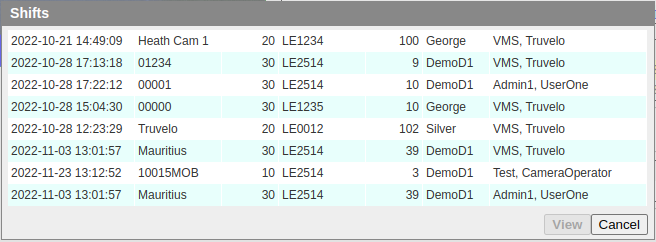
Double-clicking a shift entry or clicking the 'View' button will present you with the details of the selected shift. For example ...
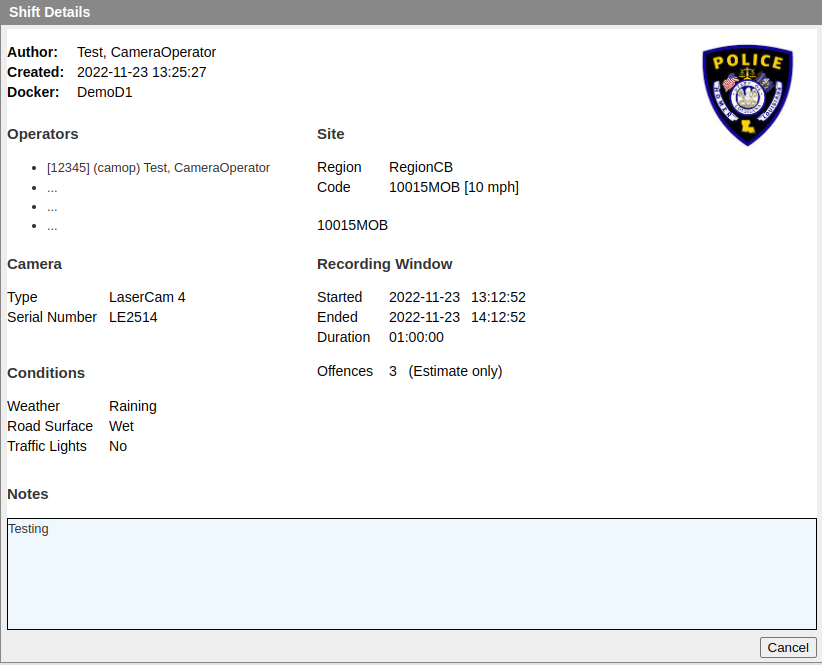
Note that the displayed logo and layout are customizable.
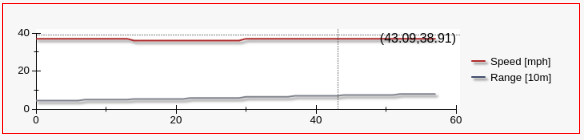
Speed and Range Chart
The Speed and Range Chart is described here.
Violation List
This list is fairly self-evident. Its purpose is to allow the user to select a particular violation and to view it's associated details. You will notice that the text colour may vary from line to line:
Gray denotes violations that have been 'Rejected' and confirmed by a 'Supervisor'.
Blue denotes violations that have either not been adjudicated or nor not yet checked by a 'Supervisor'.
Black denotes violations that have been processed and exported.
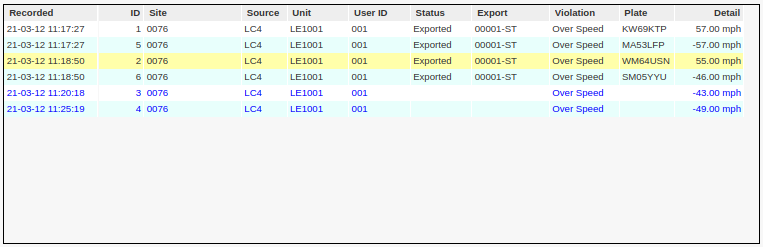
Recorded: The date and time at which the violation was recorded. This should not be confused with the data and time at which the violation was imported into the VMS system.
ID: The unique system defined ID of the violation. These are allocated sequentially when the violations are imported.
Site: The associate site code of the geographic location at which the violation was recorded.
Source: The recording equipment source type.
Unit: The serial number of the recording equipment.
User ID: The ID of the individual responsible for making acquiring the violation - also known as the camera 'Operator ID'.
Status: The VMS status of the violations. See below.
Export: The Export Batch Name in which this violation was exported. This will be blank until the violation has been exported.
Violation: The type of violation.
Plate: The vehicle registration number of the associated vehicle.
Detail: The details for this violation type. For speeding offences, it will be the recorded speed.
Status Values
The 'Status' column denotes a combination conditions, summarized as follows:
Stage |
Description |
<Blank> |
Unprocessed. |
Busy |
Currently being processed by an adjudicator. |
Pending |
Pending review by the supervisor. |
Reviewing |
Busy being reviewed by the supervisor |
Accepted |
Accepted by an Adjudicator. Blue then it is still to be checked by a 'Supervisor' - otherwise Black. |
Rejected |
Rejected by an Adjudicator. Blue then it is still to be checked by a 'Supervisor' - otherwise Black. |
Overruled |
The ruling has been overruled by the supervisor. |
Exported |
Completed processing and has been exported. |
To summarize: Black or Gray indicate that no further action is required by a user (Adjudicator or Supervisor).
Evidence List
This is a list of all the items of evidence associated with the selected violation. All of these files are saved in the LFR (Large File Repository).
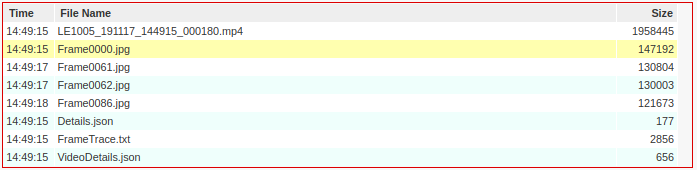
The items in this example include ...
An MP4 video clip (LE1011_191108_132854_000044.mp4).
Three extracted frame images (Frame0000.jpg, Frame0034.jpg, and Frame0053.jpg) from the video clip.
A JSON Details file sourced (and possibly reformatted) from the recording device (camera).
A Frame Trace (FrameTrace.txt), listing all the video frames and their extracted (via OCR) details.
A JSON VideoDetails document (VideoDetails.json) containing a violation summary, and all the video technical details, such as frame rate, codex, etc.
Occasionally an OCR Repairs file (OcrRepairs.txt) will be listed if the OCR engine processing experienced difficulties during the violation import process.
Samples of the contents of some of these files are shown below.
Sample 'Details'
{
    "ApiVersion": "1.0.0",
    "Header": {
        "ActiveSatellites": "--",
        "BatteryVoltage": "368",
        "CameraWorkingMode": "3",
        "CameraZoomMode": "0",
        "CaptureSpeedCar": "005",
        "Compass": "2",
        "DVRRecordState": "1",
        "Date": "191108",
        "Distance": "0468",
        "EventNo": "00000716",
        "GPSEast": "------------",
        "GPSNorth": "-----------",
        "Inclination": "1",
        "LaserBeamState": "1",
        "LocationCode": "111555",
        "MultipleSpeedLimit": "0",
        "OperatorId": "000001",
        "RangeDecimalPoint": "3",
        "RecordName": "LE1011_191108_132854",
        "RecordNumber": "000044",
        "SpeedLimit": "013",
        "SpeedUnit": "2",
        "TargetDirection": " ",
        "TargetSpeed": "052",
        "Time": "132854",
        "Transfer": "0",
        "UserType": "2",
        "WorkingMode": "2"
    },
    "Records": [
        [
            "",
            "2019-11-08 13:28:54",
            468,
            52
        ],

        ....


        [
            "",
            "2019-11-08 13:28:56",
            310,
            51
        ]
    ]
}
Sample 'Frame Trace'
This is a textual representation of the displayed Speed and Range Chart, and is useful when attempting to diagnose an OCR translation error. Unfortunately such errors are sometime unavoidable due to a technical problem (or electronic 'noise') on the original recording equipment. This is very rare, but does occasionally occur, and is described more fully below.
FrameNo | Time | Range[Meters] | Speed[Mph] | OverSpeed
0 | 13:28:54 | 468 | 52 | N
1 | 13:28:54 | 468 | 52 | N
2 | 13:28:54 | 468 | 52 | N
3 | 13:28:54 | 468 | 52 | N
4 | 13:28:54 | 468 | 52 | N
5 | 13:28:54 | 468 | 52 | N
6 | 13:28:54 | 468 | 52 | N
7 | 13:28:54 | 446 | 52 | N
8 | 13:28:54 | 446 | 52 | N
9 | 13:28:54 | 446 | 52 | N
10 | 13:28:54 | 446 | 52 | N
11 | 13:28:54 | 446 | 52 | N
12 | 13:28:55 | 446 | 52 | N
13 | 13:28:55 | 446 | 52 | N
14 | 13:28:55 | 446 | 52 | N

   ...

49 | 13:28:56 | 333 | 51 | N
50 | 13:28:56 | 333 | 51 | N
51 | 13:28:56 | 333 | 51 | N
52 | 13:28:56 | 333 | 51 | N
53 | 13:28:56 | 310 | 51 | N
54 | 13:28:56 | 310 | 51 | N
55 | 13:28:56 | 310 | 51 | N
Sample 'VideoDetails'
This is a JSON document containing ...
- A violation summary constructed during OCR analysis of the video.
- Technical details pertaining to the video recording itself. These details will vary depending on the acquisition equipment (camera).
{
    "APIVersion": "2.0.1",
    "Summary": {
        "Date": "",
        "DeviceSN": "LE1011",
        "MaximumRange": 468,
        "MaximumRangeFrame": 0,
        "MaximumSpeed": 52,
        "MaximumSpeedFrame": 0,
        "OperatorID": "001",
        "Record": "000044",
        "SiteCode": "",
        "Time": "13:28:54",
        "UnitOfRange": "Meters",
        "UnitOfSpeed": "Mph"
    },
    "Video": {
        "Codec": "H.264 / AVC / MPEG-4 AVC / MPEG-4 part 10",
        "Duration": 2.24,
        "Filename": "LE1011_191108_132854_000044.ASF",
        "FrameRate": 25,
        "Frames": 56,
        "Height": 576,
        "Width": 720
    }
}
OCR Repairs
When an OCR read error occurs it is sometimes possible to automatically repair the output using heuristics that try to detect impossible speed or range changes between frames. If this occurs, then an additional OcrRepairs.txt file is also generated and listed in the Evidence List. Selecting this file will result in a display like the following ...
FrameNo   271:   27 -> 22
FrameNo   286:   29 -> 21
FrameNo   361:   90 -> 19
This example indicates that in frame 271 of the video, the OCR-read speed of '27' was replaced (repaired) with the value '22'. In this case, the original Frame trace ...
...
269 | 11:06:23 | 615 | 23 | Y
270 | 11:06:23 | 615 | 23 | Y
271 | 11:06:23 | 606 | 27 | Y
272 | 11:06:23 | 606 | 22 | Y
273 | 11:06:23 | 606 | 22 | Y
...
... would be repaired to read as ...
...
269 | 11:06:23 | 615 | 23 | Y
270 | 11:06:23 | 615 | 23 | Y
271 | 11:06:23 | 606 | 22 | Y
272 | 11:06:23 | 606 | 22 | Y
273 | 11:06:23 | 606 | 22 | Y
...
... which (based on preceding and following speed values) suggests that the repair was indeed warranted.
Details Menu
This is fully described in the Violation Details Menu.

Filtering

In order to limit the displayed list of violations, use the Date, Time, Site, Device, and User (camera operator) filtering control widgets shown below.

NOTE: If your filter has been locked by the Administrator then you will be unable to change it.
Date and Time
The date and time pickers limit the displayed violations to those with a date/time greater than or equal to the selected date/time. Clicking the right arrow  has the effect of moving the date/time point to the value of the last recorded violation in the list. This is necessary because there is a hard limit on the number of violations that may be listed at a time. This button effectively allows you to select the next 'page' of violations. By default the server will automatically select the most recent recording date of the all the imported violations. Clicking the left arrow
  has the effect of moving the date/time point to 00H00 on the selected date.
Site
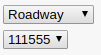
Navigate to the applicable site by first selecting the type of site (the default is all denoted by <All>) and then the specific site from the combo box that appears immediately below.
Satellite/Device

Select the type of device (in this case LC4's) and the specific device from the combo box of device serial numbers that appears immediately below. See Site Management for details.
User

Select the user in order to restrict the displayed violations to those that were recorded by a specific User/Camera Operator - denoted in this case by the 003 operator ID.
Refresh
The Refresh button is used to force a reload off the listed table entries. This may be necessary if new Violations (and ANPR events) have just been uploaded.
ANPR Display
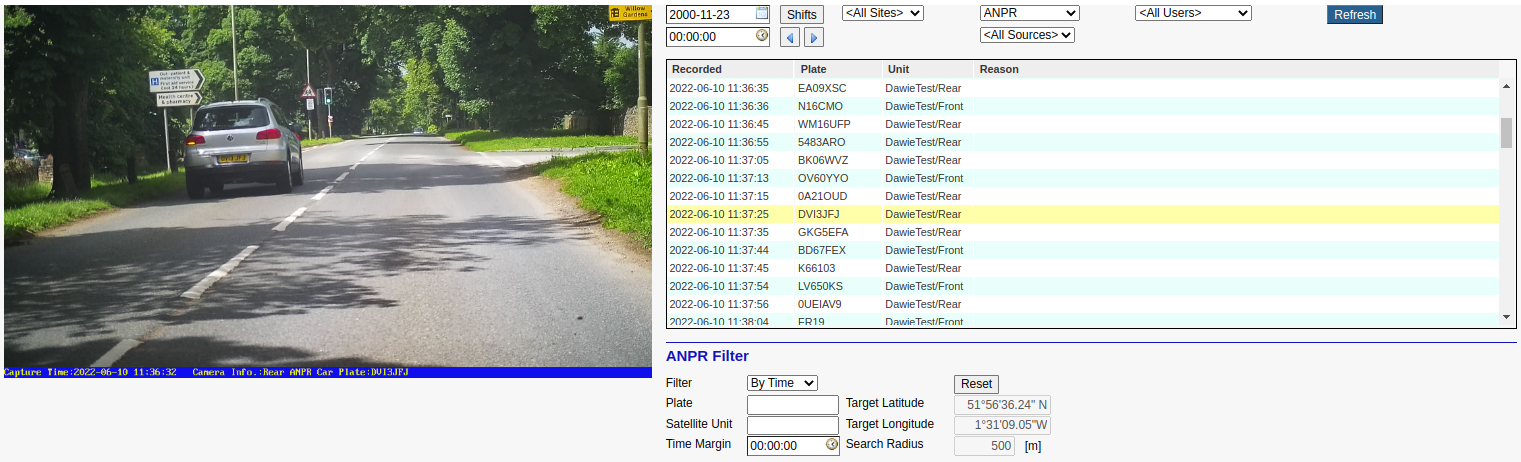
ANPR Filtering
This screen is displayed when ANPR has been selected in the Device combo box.

In this case the SAICB ANPR event type has also been selected. The set of Event Types alternatives may include ...
<All> for all ANPR events.
SAICB for vehicles that are on the South African Insurance Crime Bureau hit list.
TBOSS for vehicles that are on the Truvelo Back Office System hit list of unpaid fines and warrants of arrest.
TEST for testing the ANPR system.
ANPR Filter Options
Filter Type: This filter can be applied in the two different ways described below.
Plate: If specified, this option narrows the selected events to those events that start with the specified registration number.
Satellite Unit: If specified, this option narrows the selected events to those events that start with the specified Unit.
Filter By Time
This allows the user to select ANPR events that occurred within the Time Margin on either side of the date and time selected above. Note that if the Time Margin is zero then it will not be applied, and the selected events will be those that occurred on or after the date and time specified above in the main filter (above the Violation List).

In this example all ANPR events are selected after the time specified in the top filter, whose registration numbers start with 'KJ', and whose associated satellite unit starts with 'A0012'.
Filter By Target
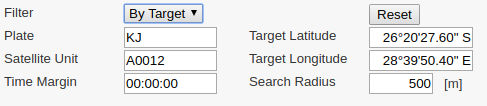
In addition to the filtering by time (described above), this option also allows the user to further limit the selected ANPR events to those that occurred within the Search Radius of the specified Target Latitude and Longitude.
Colourization
Note that Blue list box items denote violations that have yet to be adjudicated and confirmed. Gray list box items denote violations that have been Rejected.