
Supervisor
This page is only available to users that have been allocated the Supervisor Role, and allows such users to Confirm or Overrule adjudicator rulings.
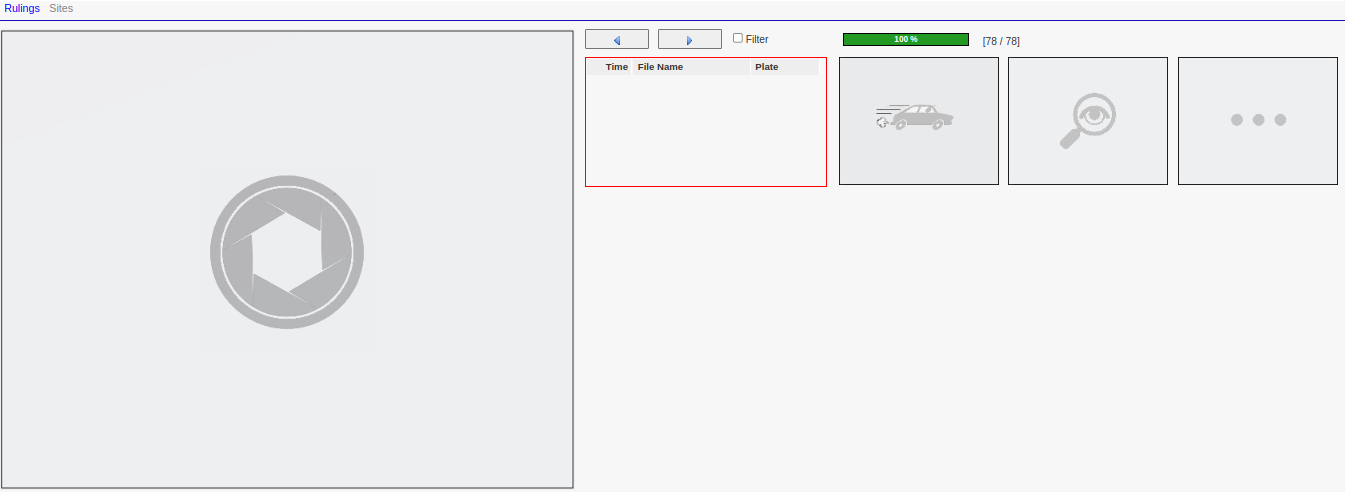
You will notice that this page contains many of the same elements as the Adjudicator page - where those details are explained.
Also note that depending on how your VMS system has been configured, the 'Supervisor' may also have access to the Sites menu option shown above, and in some cases also the Export Manager.
Clicking the Next ( ) button located to the immediate left of the Filter Checkbox, will retrieve the next available adjudicated violation ruling for review ...
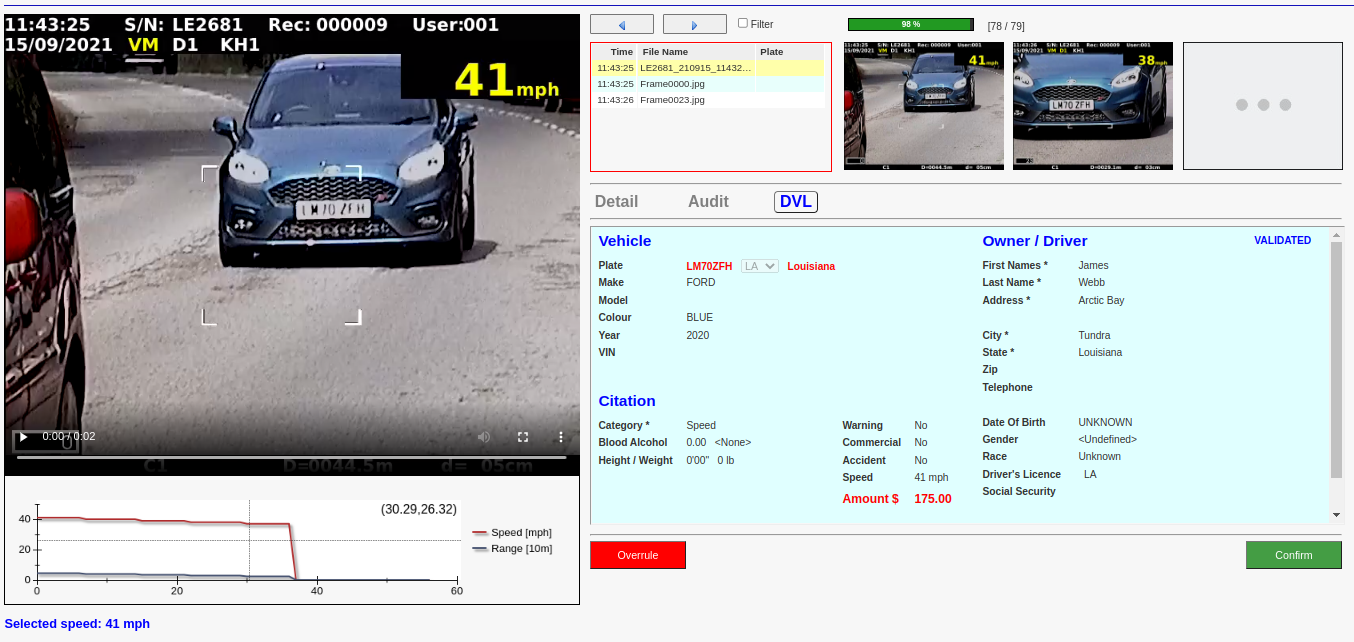
Note that the primary difference between the 'Supervisor' and 'Adjudicator' screens are that ...
the Supervisor page includes the Overrule option shown below.
the Supervisor is unable to perform the actual adjudication function, and is only permitted to confirm or reject existing adjudicator rulings.
You may now ...
Click the Next
button again to skip to the next available ruling. Click the Back
 button to go back to the previous unconfirmed ruling.
 Overrule the ruling by clicking the Overrule button.
Confirm the ruling by clicking the Confirm button.
Confirmation
To confirm an adjudication, simply press the Confirm button. This will mark that violation as ready for export, and the next available violation will then be retrieved for confirmation. Note that once a ruling has been confirmed it is no longer available for further review and processing, and is only available for export to the configured Back Office system.
Auto Confirmation
The VMS system also allows for the configuration of an Auto-confirm function that is controlled by the 'AdjAutoConfirmRate' setup parameter. This is a value in the range 0 to 1 (or 0% to 100%) and controls the percentage of Adjudicator rulings that the VMS system will automatically confirm.
If that value is set to zero then Auto-confirmation is effectively disabled, and all adjudications will need to be checked by a Supervisor.
By contrast, if that value is one (100%) then all violations will be automatically confirmed - effectively eliminating the need for a Supervisor.
A value in the range greater than zero but less that one is useful when the Supervisor role is largely one of Quality Assurance. In that instance, only a percentage of the violations will be auto-confirmed, and the rest will require confirmation by the Supervisor.
Overrule
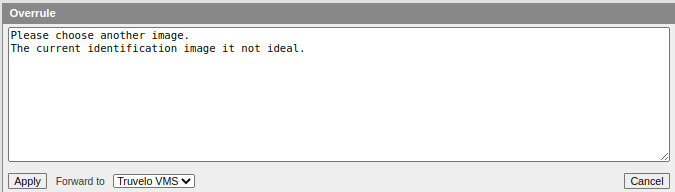
Clicking the red Overrule button results in a dialog box into which the Supervisor must provide an explanation in the edit box provided. By default, overruled violations are re-queued again for reconsideration by the Adjudicator originally responsible for the ruling, or alternatively to the adjudicator selected in the displayed drop-down list.
Locked Offences
It is important to understand that when a ruling has been selected and is visible on the Supervisor screen, that ruling is now effectively 'locked' by that supervisor - rendering it inaccessible to any other supervisors. Therfore, if the Supervisor were to simply close his/her browser at this point without either Confirming or Overruling this ruling, then it will remain locked by this supervisor. This has the advantage of allowing the Supervisor to, in effect, reserve this ruling for later consideration, but could also be problematic if the Supervisor fails to proceed again at a later stage.
To avoid locking a ruling, the Supervisor should click the Back button a few times, to return to a clear screen, before terminating the session (logging out).
Note that locked violations may be forcibly released by an Administrator using the Release button on the 'Accounts' page, but this action will also disconnect the Supervisor, requiring them to log in again.