
Licence Management
This panel is only available to users that have been allocated the Administrator Role, and allows the user to view and/or update the VMS system Licence File.
Licence Elements
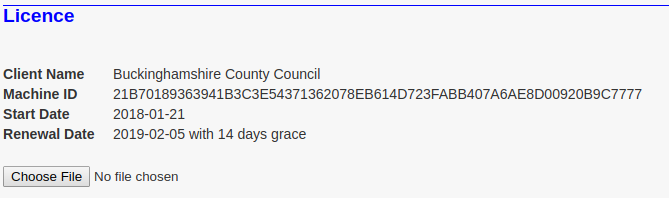
The VMS System Licence typically has the following visible elements ...
Client Name
The name of the client to whom the licence has been allocated. It is a text string of no more than 128 characters.
Machine ID
This number uniquely identifies the specific machine on which the software is licensed to run. It is a hexadecimal representation of a SHA256 hash constructed from unique elements of the physical machine on which the VMS webserver is running, together with internal/private Truvelo keys.
This number must be provided to Truvelo before a valid licence file can be issued.
Start Date
The licence commencement date. Typically, a licence will only be valid on or after the start date, but may be valid prior to this date provided that the difference in days does not exceed the Grace Period.
Renewal Date
The date on and after which the current licence will be deemed overdue. Although a licence is technically only valid between the Start and Renewal dates, it may nevertheless remain usable for a short period after the Renewal Date provided that this does not exceed the Grace Period. Once the Grace Period has also been exceeded then the licence will expire. Expired licences place severe restrictions of the available functionality, typically only permitting access to the Licence Management.
Grace Period
Licences with a grace period will allow the server to remain fully operational for several days (the grace period) before the Start Date and after the Renewal Date.
Licence Updates
Regardless of the current licence expiry status, an administrator will always have access to the Licence Management Screen.
To install the initial licence or update the existing one, click the Choose File button and use the resulting dialogue box to navigate to the Licence File on your local machine. This file must have been previously prepared, and sent to you by a Truvelo representative. The filename will probably be something like VmsLicence.xml, and will have been specifically customized for your system, based on your Client Name and the Machine ID described above. When applying for a new licence, make sure that you include a copy of the displayed Machine ID with your request. Without the Machine ID, a valid licence file cannot be generated.
Licence Status
The current licence status is displayed in the 'Status Bar' at the top of all screens.
The status and associated 'Status Bar' (sample) messages are as follows:
Status |
Description |
Sample Status Bar Message |
Unlicensed |
The product has no licence |
<none> |
Valid |
The current date is less than the expiry date and within the 'grace period' from the licence start date. |
Licence Exp: 2023-03-01 |
Pending |
The current date is less than the expiry date but also withing the 'grace period' from the licence end date. |
This product licence will expire in 5 days |
Overdue |
The current date is after the licence end date, but still within the 'grace period'. |
Licence Exp: 2022-03-31 EXPIRED with 18 days grace remaining |
Expired |
The current date exceeds both the licence end date and the allocated 'grace period'. |
Licence Exp: 2022-03-31 EXPIRED |
Status Bar examples include ...


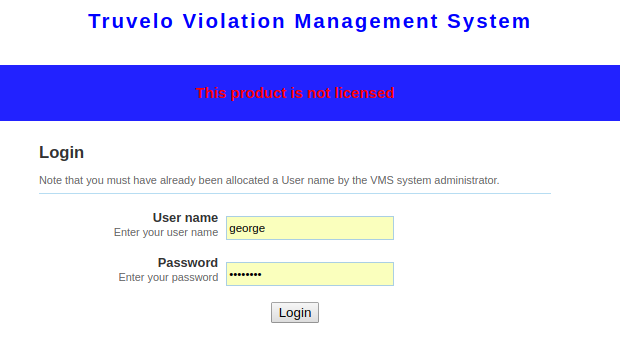
Once the licence is close to expiry, or has already expired, the log in screen will include a very prominent licence status banner across the screen. For example ...
Invalid Files
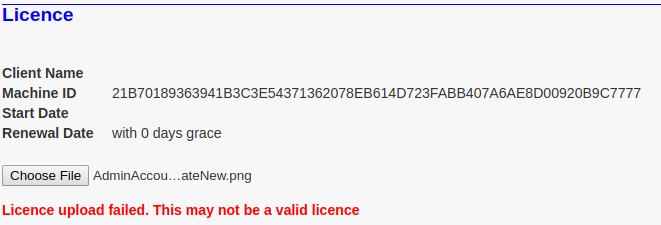
If an invalid file is selected, then you will be presented with an error message. Something like the following will be displayed ...
IMPORTANT
After updating the licence it is not necessary to restart the VMS Webserver however the Administrator will need to log out and back in again in order for the VMS licensing status to be reloaded.